
Pilion
A desktop browser for ACP agents — connect yours locally or over SSH, and let it drive the browser through MCP: approvals, takeover, session resume.
Desktop app — open this page on your computer to download the installer.
Recommended the Apple silicon build. If you're on an Intel Mac, the Intel build is available too. Get the Intel build
001 / 008
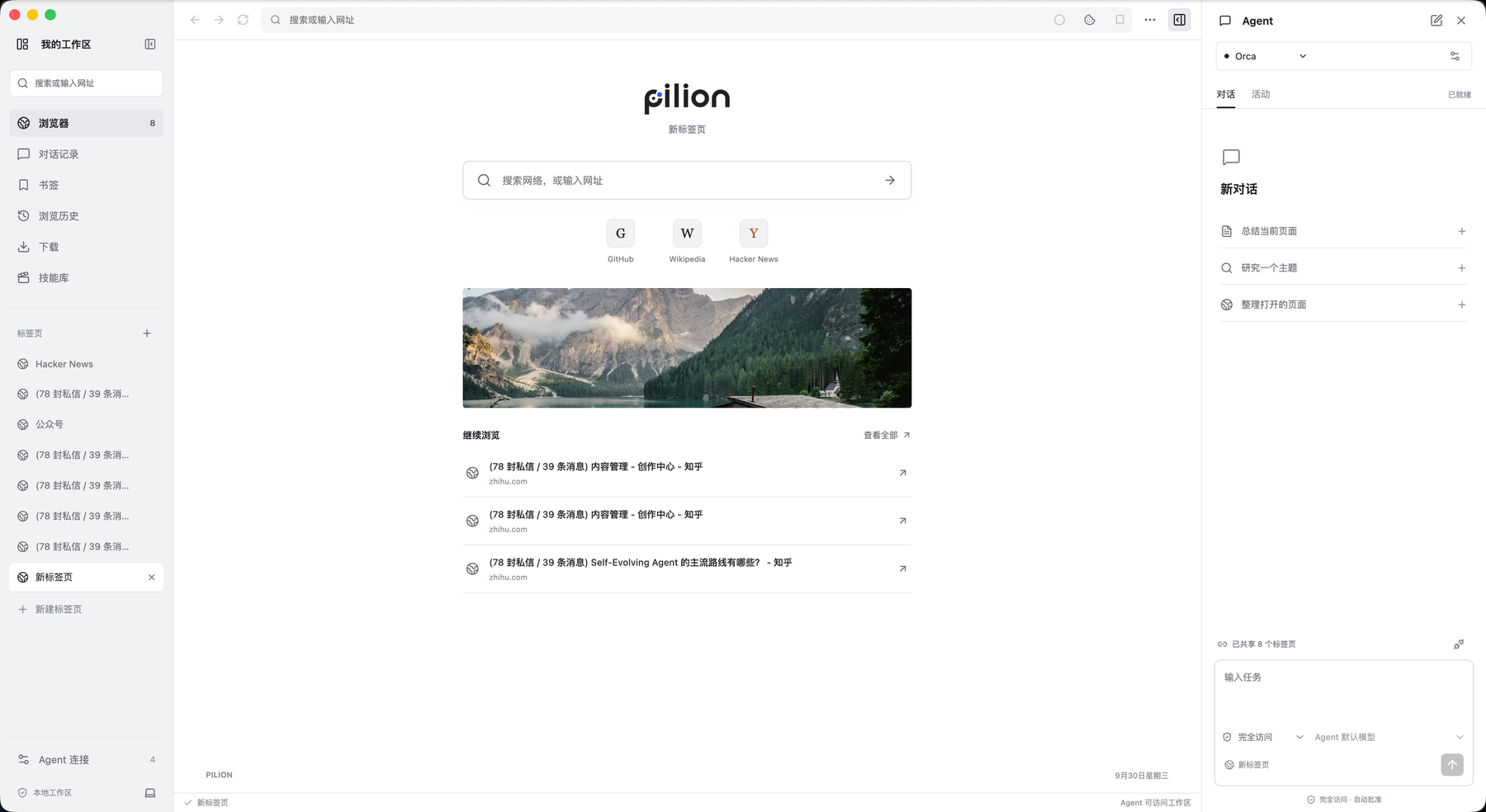
Browse, chat, collaborate — in three panes
Manage tabs and work history on the left, browse normally in the middle, talk to an agent on the right. Via MCP, the browser hands your tab to the agent: browser_snapshot, browser_screenshot, navigate, click, type.
 点击放大
点击放大
002 / 008
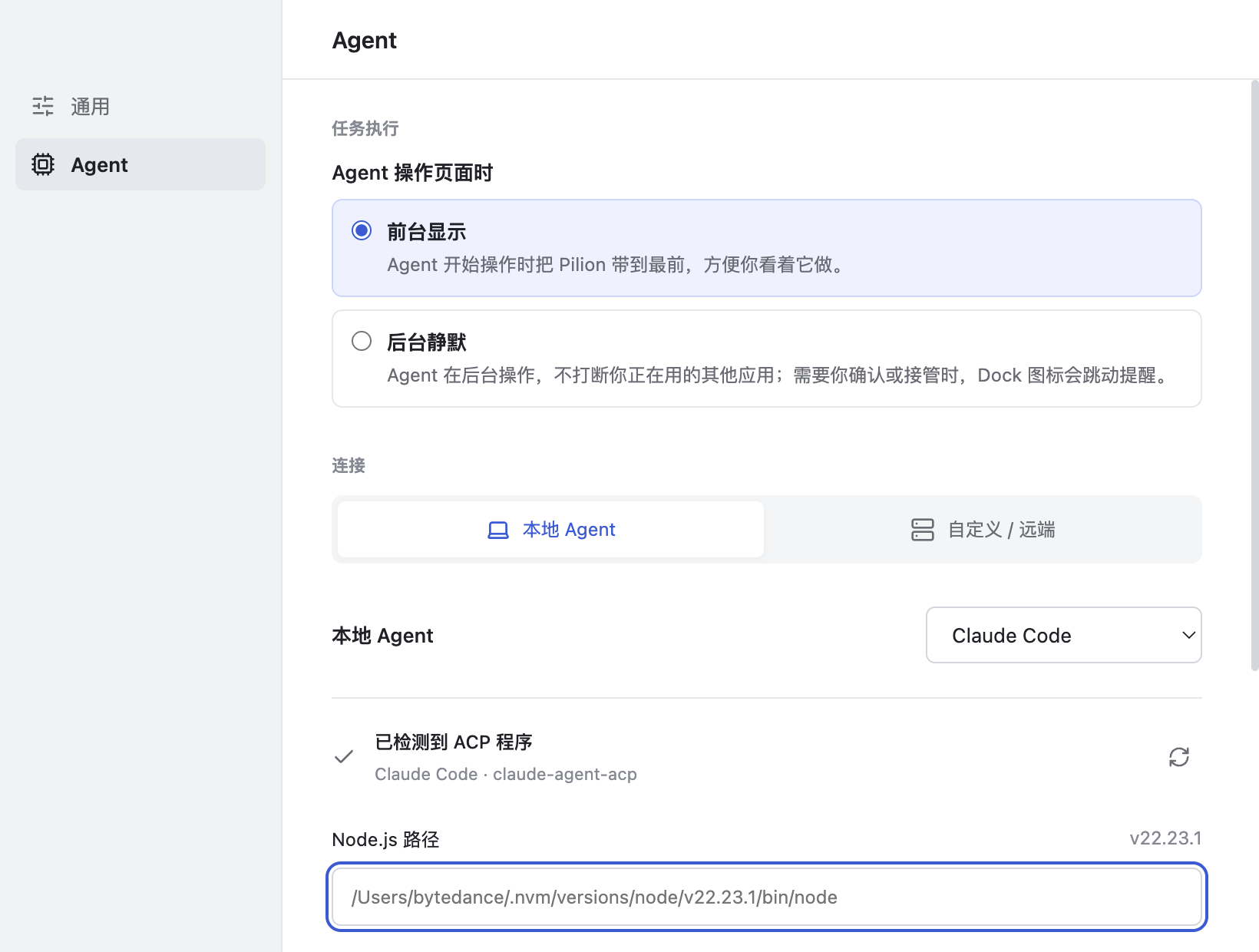
Any ACP agent, locally
Claude Code, Codex, Gemini CLI, Grok Build, OpenCode, Pi, Orca, Blade — locally installed agents work out of the box, running foreground or silently in the background.
Claude CodeCodexGemini CLIGrok BuildOpenCodePiOrcaBlade
 点击放大
点击放大
003 / 008
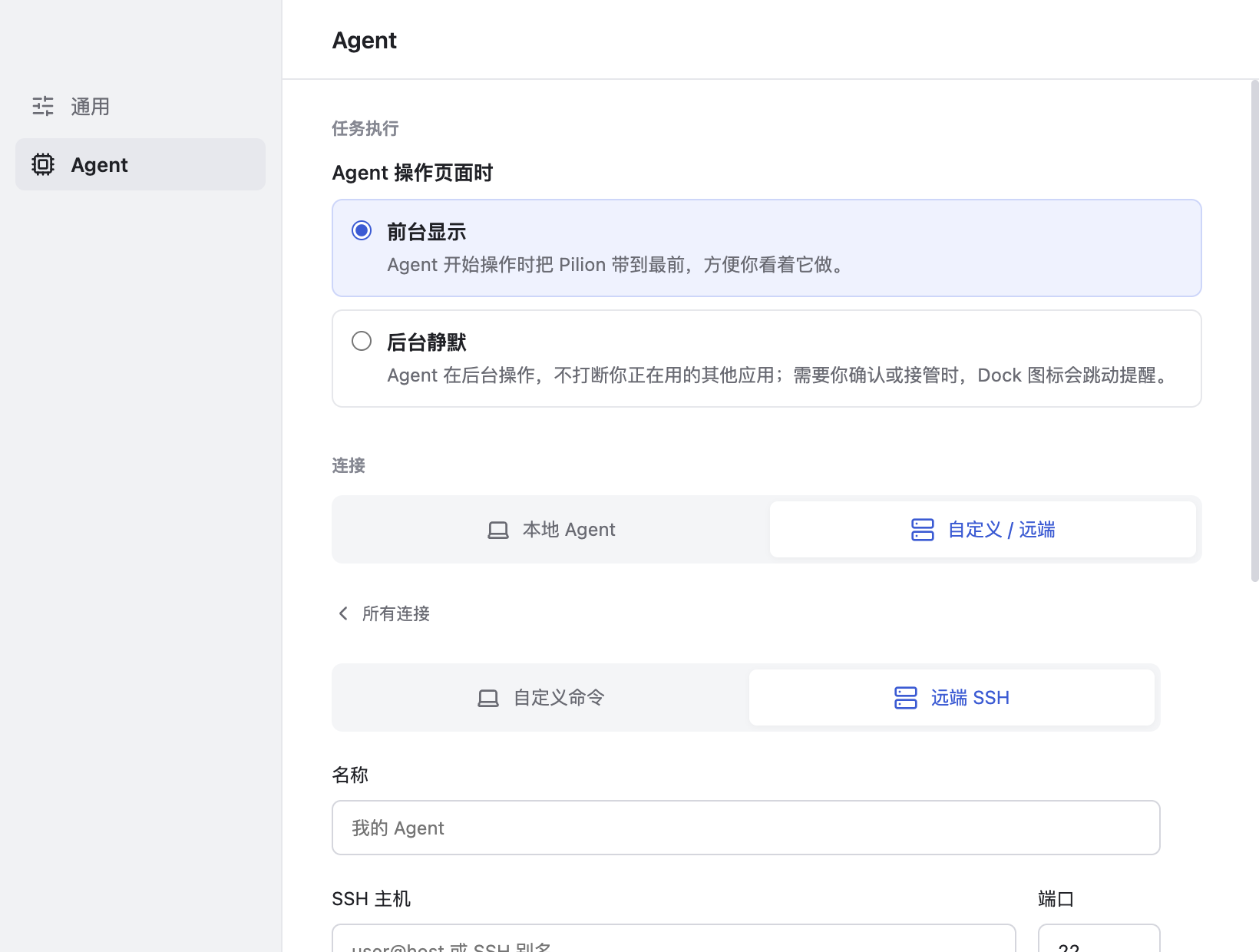
Or run your agent remotely
Connect to agents on a remote server over SSH with exactly the same experience — heavy lifting stays on the server, interaction stays in the browser.
 点击放大
点击放大
004 / 008
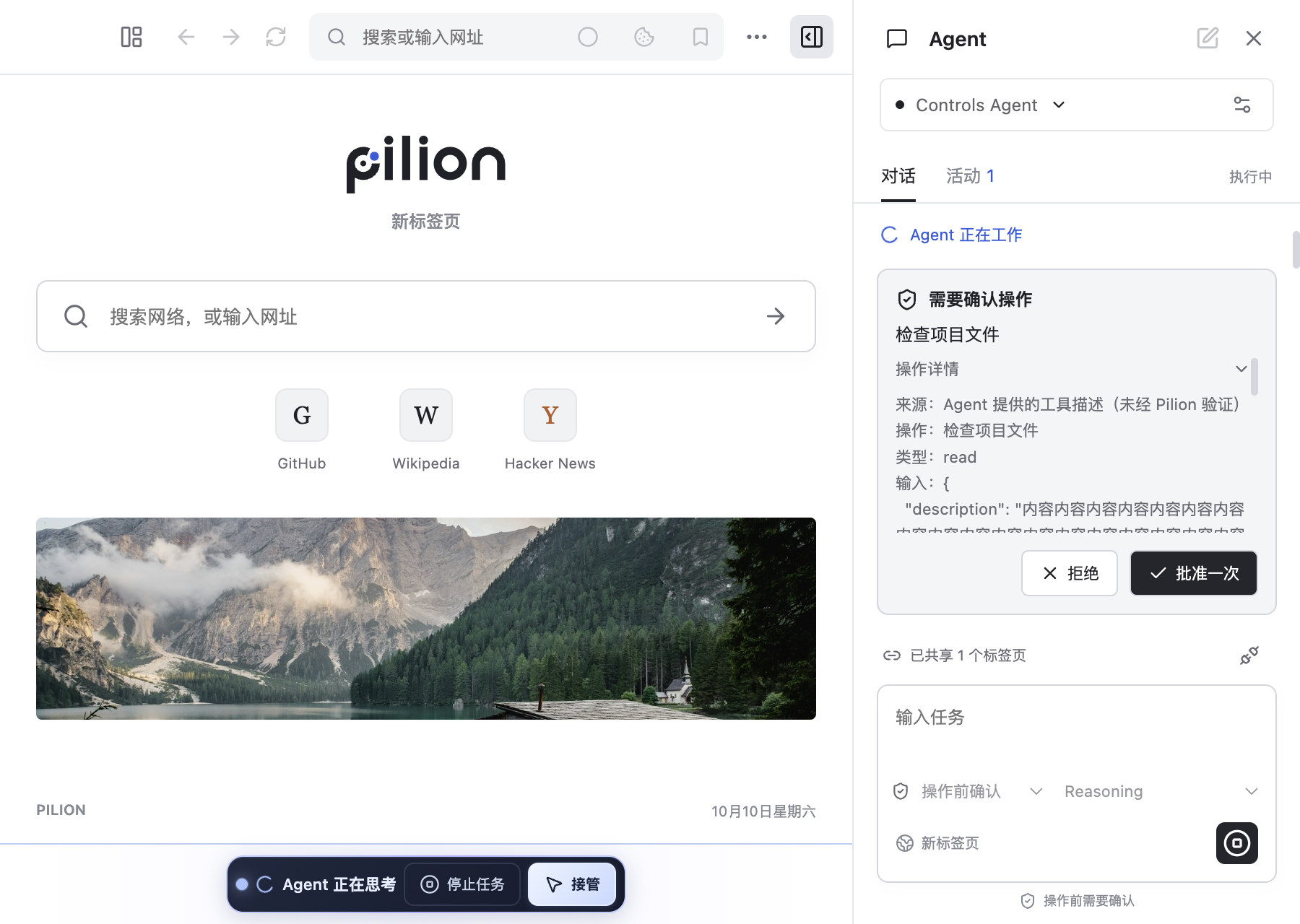
Approve first, take over anytime
Every sensitive agent action goes through inline approval first: inspect the exact step, approve, edit or reject. Sessions can be resumed, and you can take over anytime.
 点击放大
点击放大
005 / 008
Skill recording: you show it once
Record a web flow once in the browser; the agent distills it into a reusable skill. Replays go through the same tool path as the agent, with a single confirmation on first replay per task.
Record
You perform the flow once, as a human.
browser_skills_record
Distill
The agent turns it into a structured skill.
skills_library
Replay
Replayed through the tool path agents use.
browser_skills_play
006 / 008
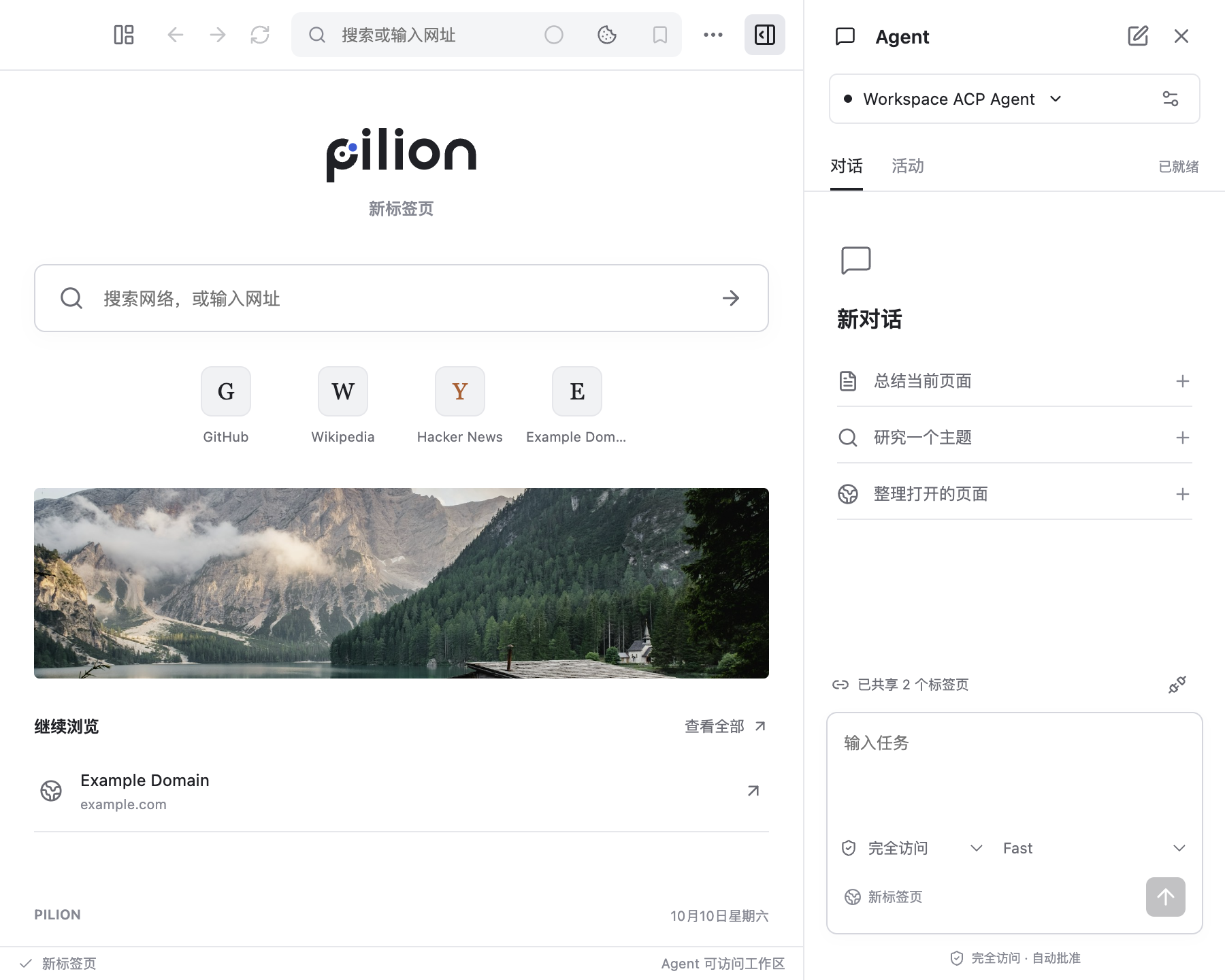
Narrow windows & background mode
Collapse to two panes when the window narrows, and let “background” windows run agent tasks silently without interrupting your work.
 点击放大
点击放大
007 / 008
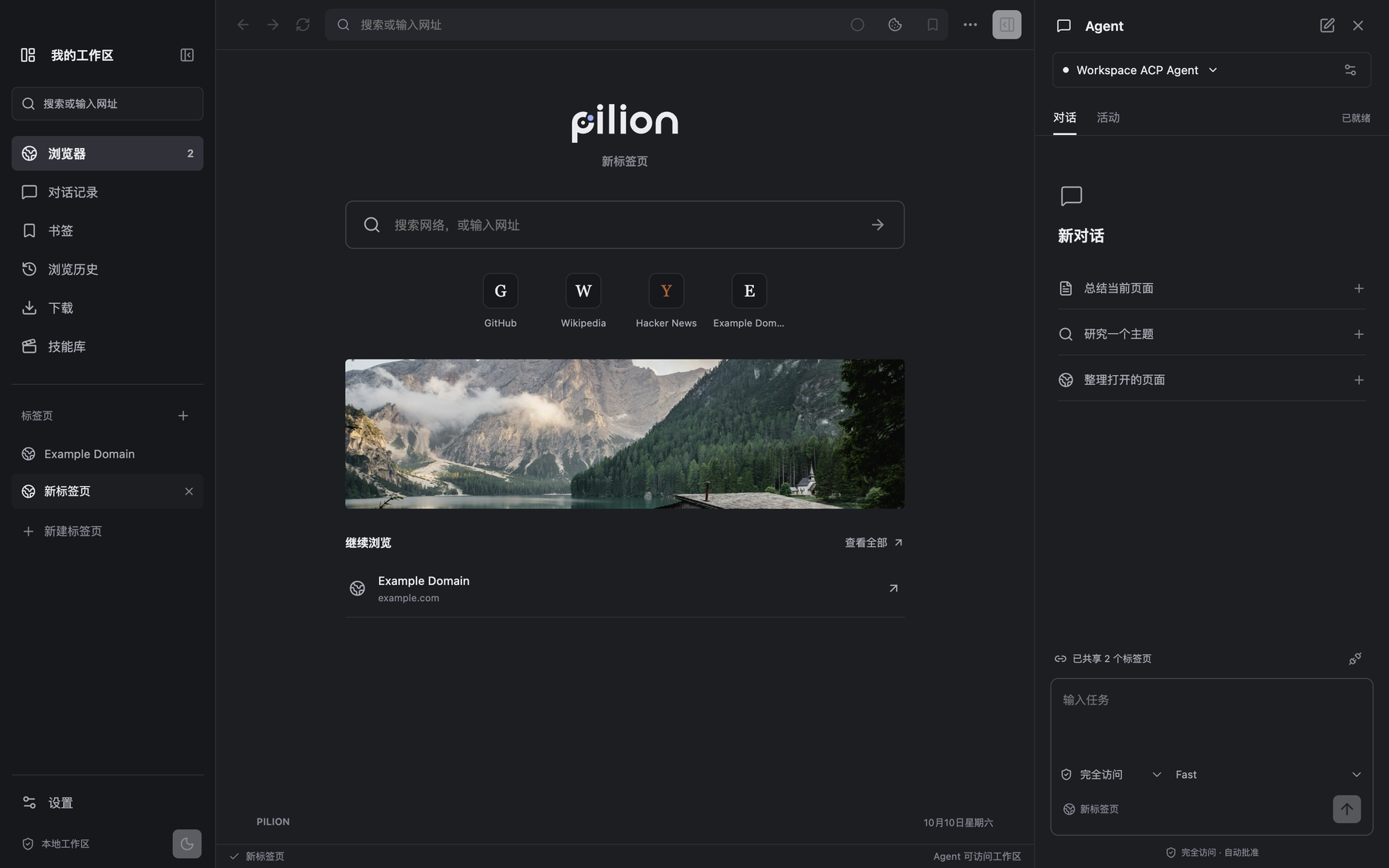
Light & dark themes
Themes follow your system automatically, or pin light / dark manually in settings.
 点击放大
点击放大
008 / 008
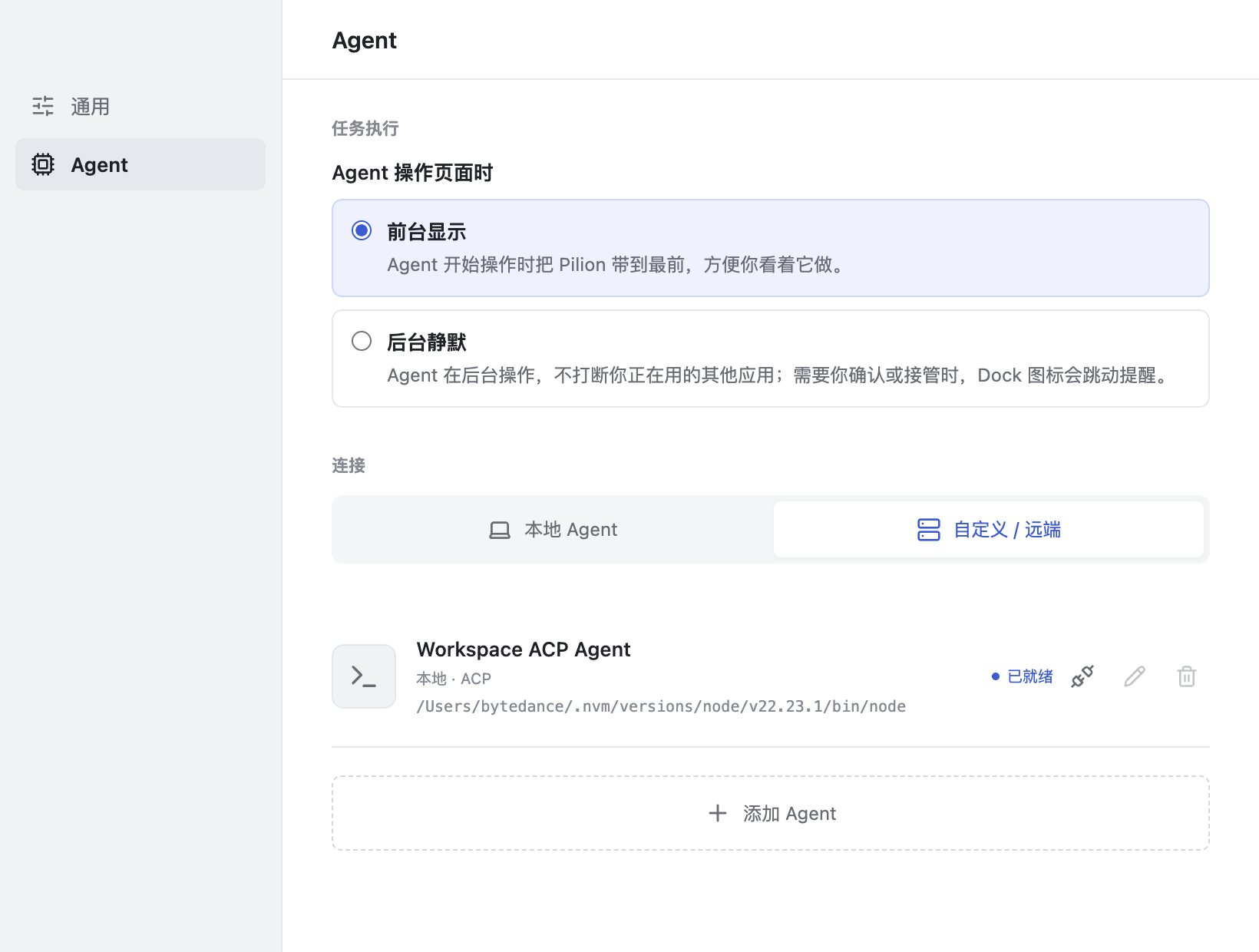
Settings
Manage your ACP agents, MCP tool permissions and appearance preferences — all in one window.
 点击放大
点击放大
Install notes
The macOS build is signed and notarized by Apple — just open it. Windows and Linux builds aren't signed yet; see the notes for yours.
Drag to Applications and open
- Open the dmg and drag Pilion to Applications
- Open Pilion from Applications
Signed with a Developer ID and notarized by Apple, so macOS won't say it “can't verify the developer”. Pick arm64 for Apple silicon, x64 for Intel.
Getting past SmartScreen
- Run the downloaded Pilion-<version>-win-x64.exe
- Click “More info” in the SmartScreen dialog
- Click “Run anyway” to continue
The exe isn't signed yet, so Windows SmartScreen will warn — that's expected.
AppImage / deb
- Download the AppImage or deb
- AppImage needs the executable bit set first
- Install the deb with your package manager
chmod +x Pilion-linux-x86_64.AppImageBoth AppImage and deb are unsigned; each file on the Releases page lists its SHA-256 if you want to verify it first.